
Personnel Scheduling
In Personnel Scheduling, you can see the shift of a specific worker.
- Go to Resources and select Personnel Scheduling.
- The Employee Oriented Scheduling panel will appear. On the top left, click on the box to see the list of employees or type the name of the worker whose shift schedule you want to see. In this example, let's select Henry Miller.
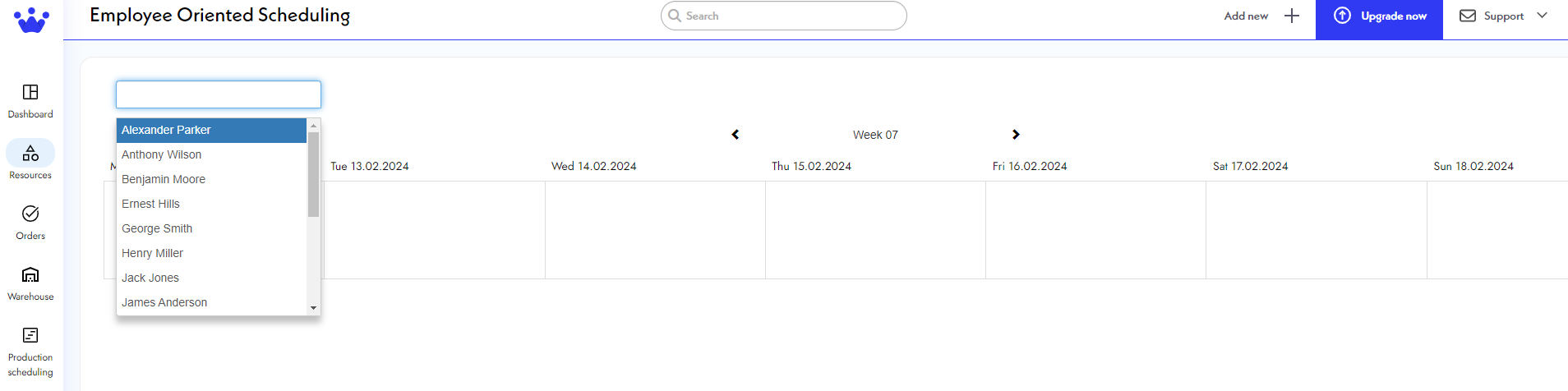
Now you can see the shifts this person will work during the week.
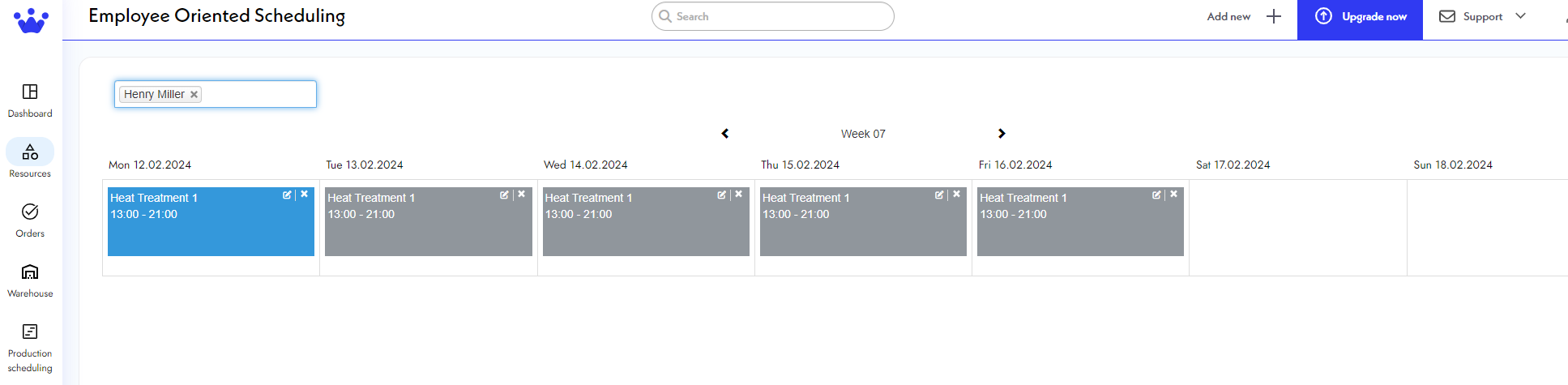
In this same panel, you can add more workload to this employee, either add another shift or make this person work in two workstations at the same time (if possible)
To do this:
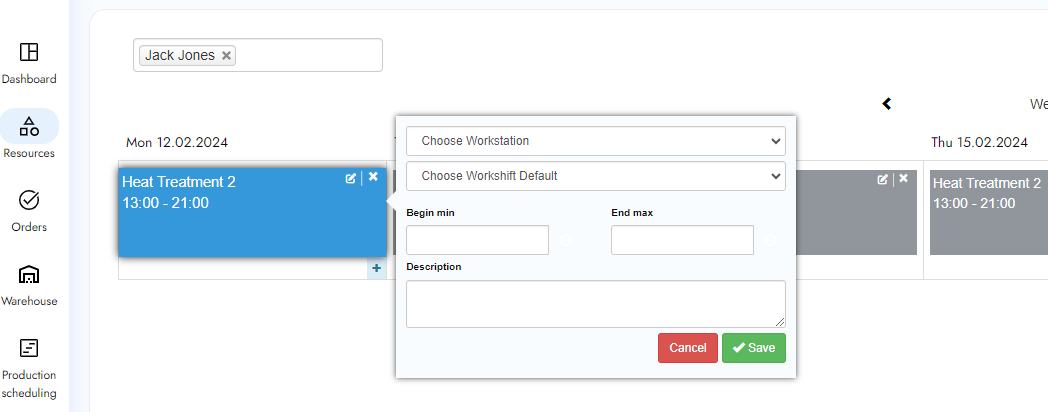
- Click on the + plus sign icon on the bottom right corner of the day shift.
- A new window will pop up; add the shift or the extra workstation you want to add. You can also write a small description for these changes, then click Save.
The new work or shift will appear now for this person.
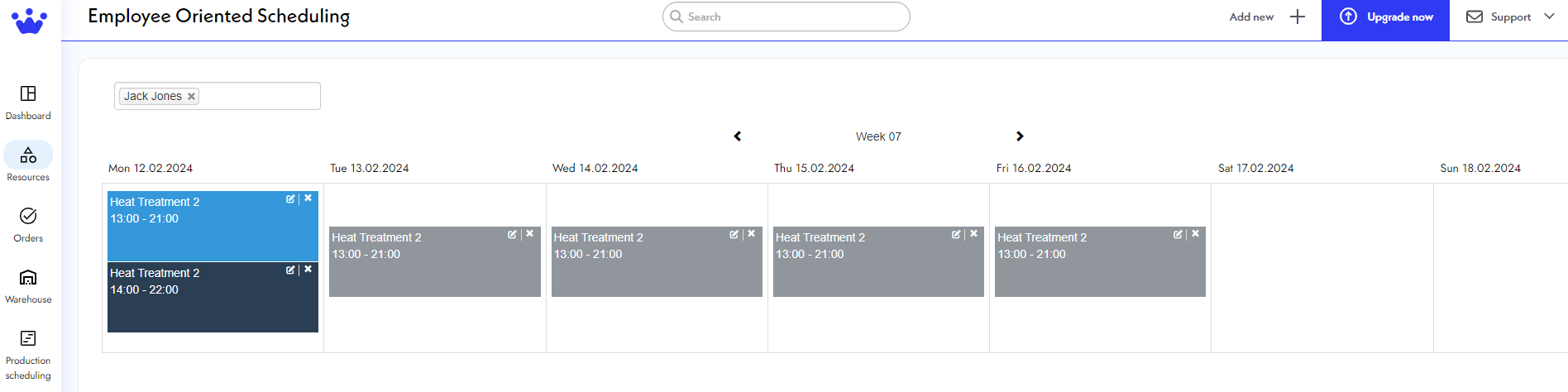
This SkyPlanner feature is excellent when an employee needs to be at different workstations or works several shifts.