
Add maintenance to a workstation
To schedule or active maintenance to a workstation:
- We will go to Resources and select Workstations. The software will take you to a page containing all your existing workstations.
- Look for the workstation you want to add maintenance to and select the
pencil icon at the right of this workstation. In this example we will choose Saw 1.
- You will be redirected to this specific workstation panel. Look for Workstation Exceptions at the bottom.
- Click on
.
- New options will appear. On Type, select Maintenance and add a Time range for this action. It can be a few hours or days. You can also add a little description. In this example we will make a maintenance for next week with a duration of one day.

- Finally, click Save. Wait for the panel to tell you this action has been done successfully.
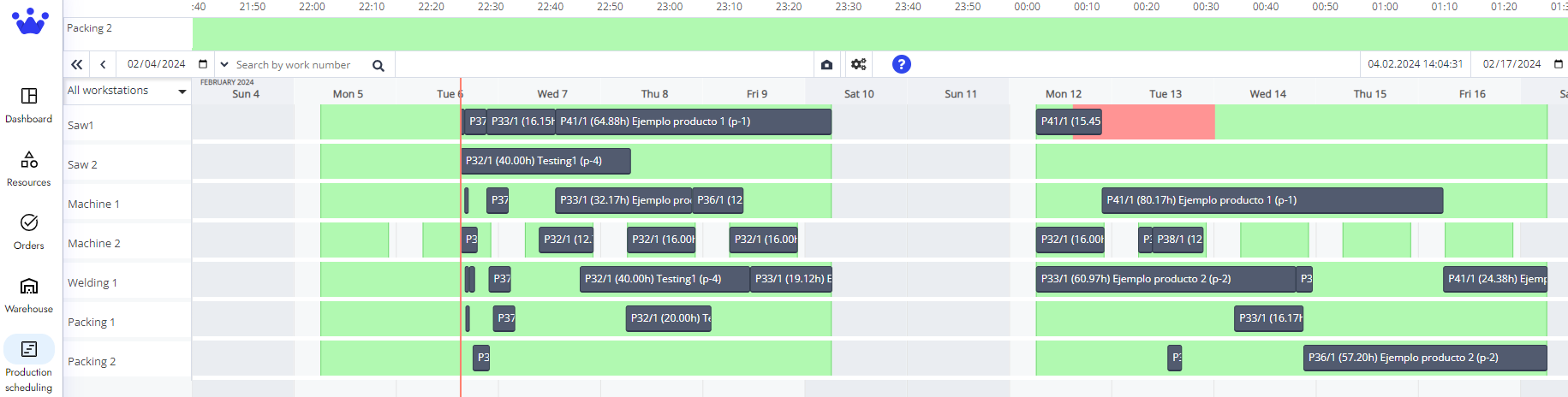
- If you go to the GANTT Timeline, you will notice that the capacity is now in red. Click on the King Button
and click ok.
- SkyPlanner will reschedule your production plan in the most optimal way, now taking in consideration this new maintenance. You will see a draft of the new scheduling in blue and your previous schedule in transparent white.
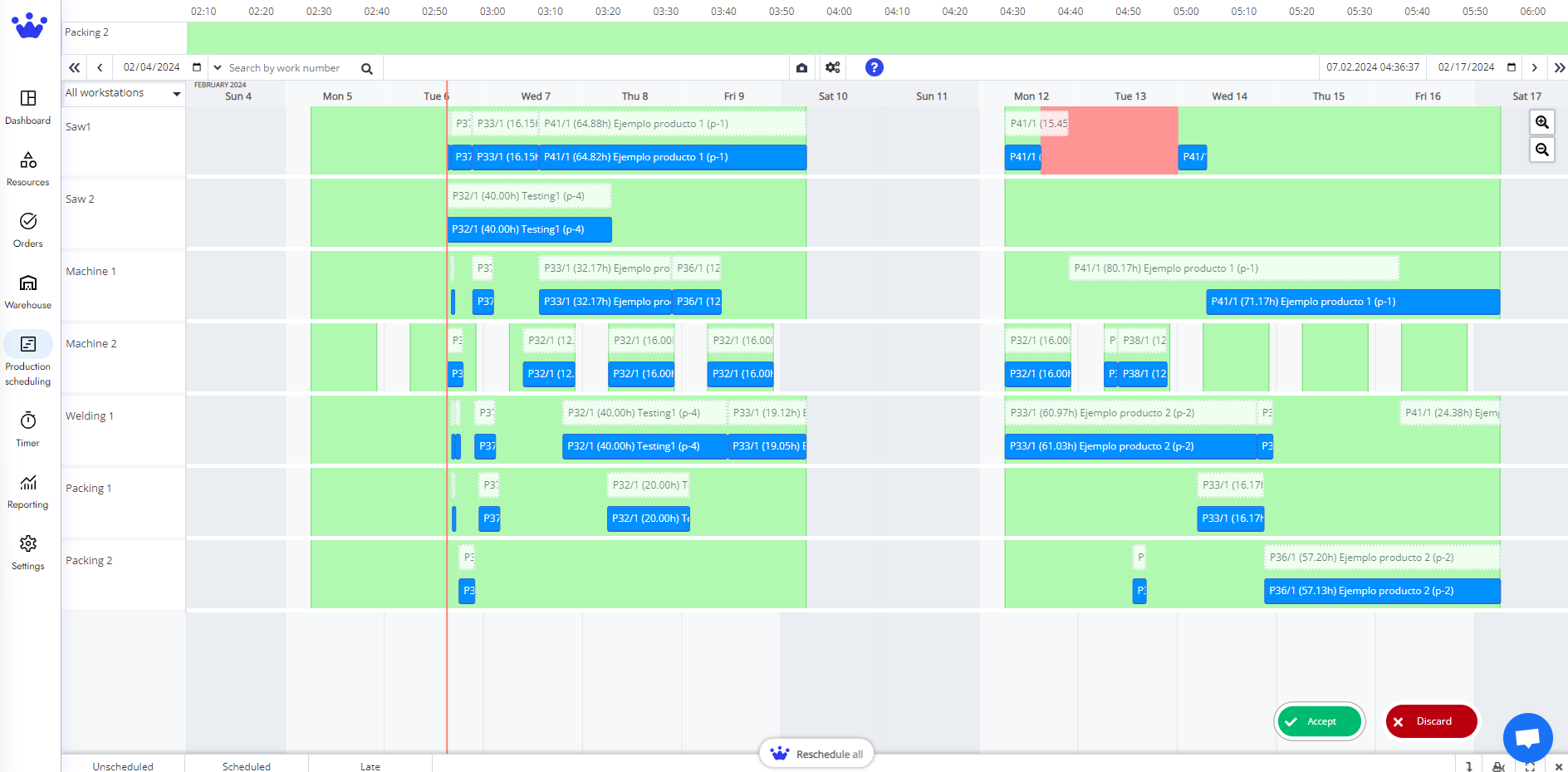
- Click Accept to update your production.
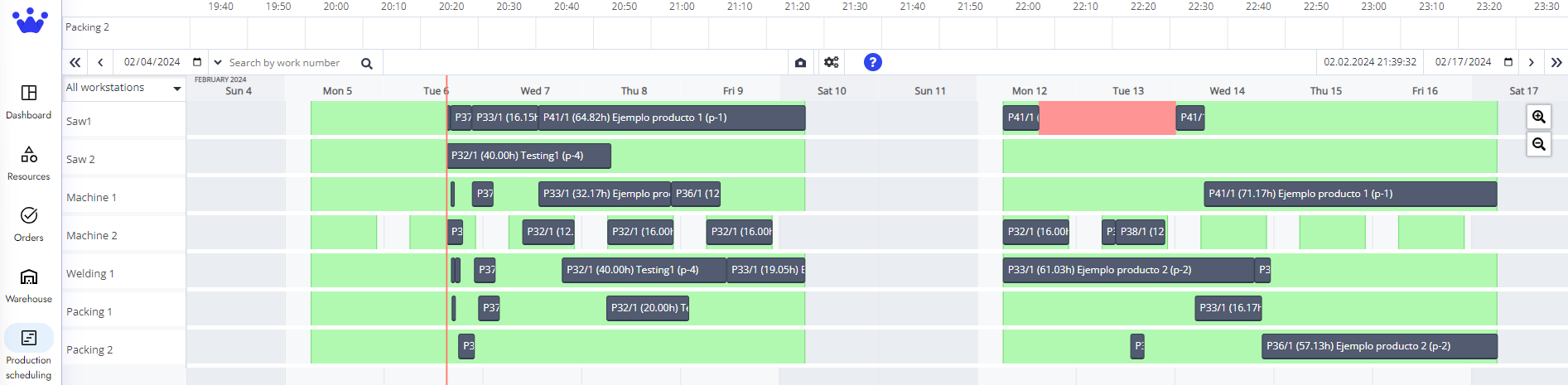
Now your production schedule is updated.