Create a new Employee Group
If you want to create a new Employee Group:
- Go to Resources and select Employee Groups.
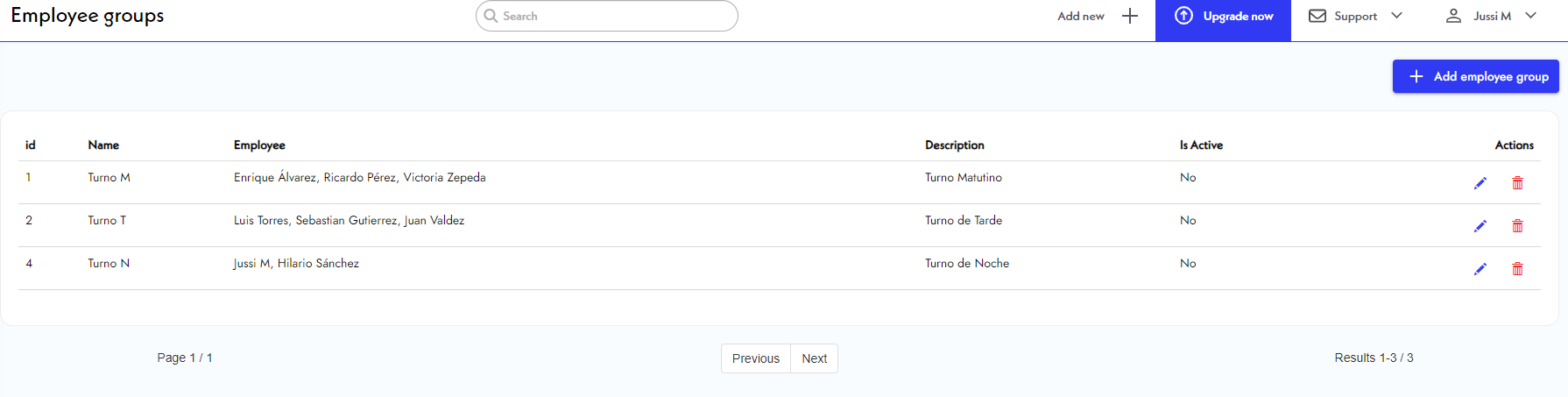
- Next, you will see the Employee Groups panel, where you can visualize all your created groups.
- To create a new Employee group, click
on the top right of the panel.
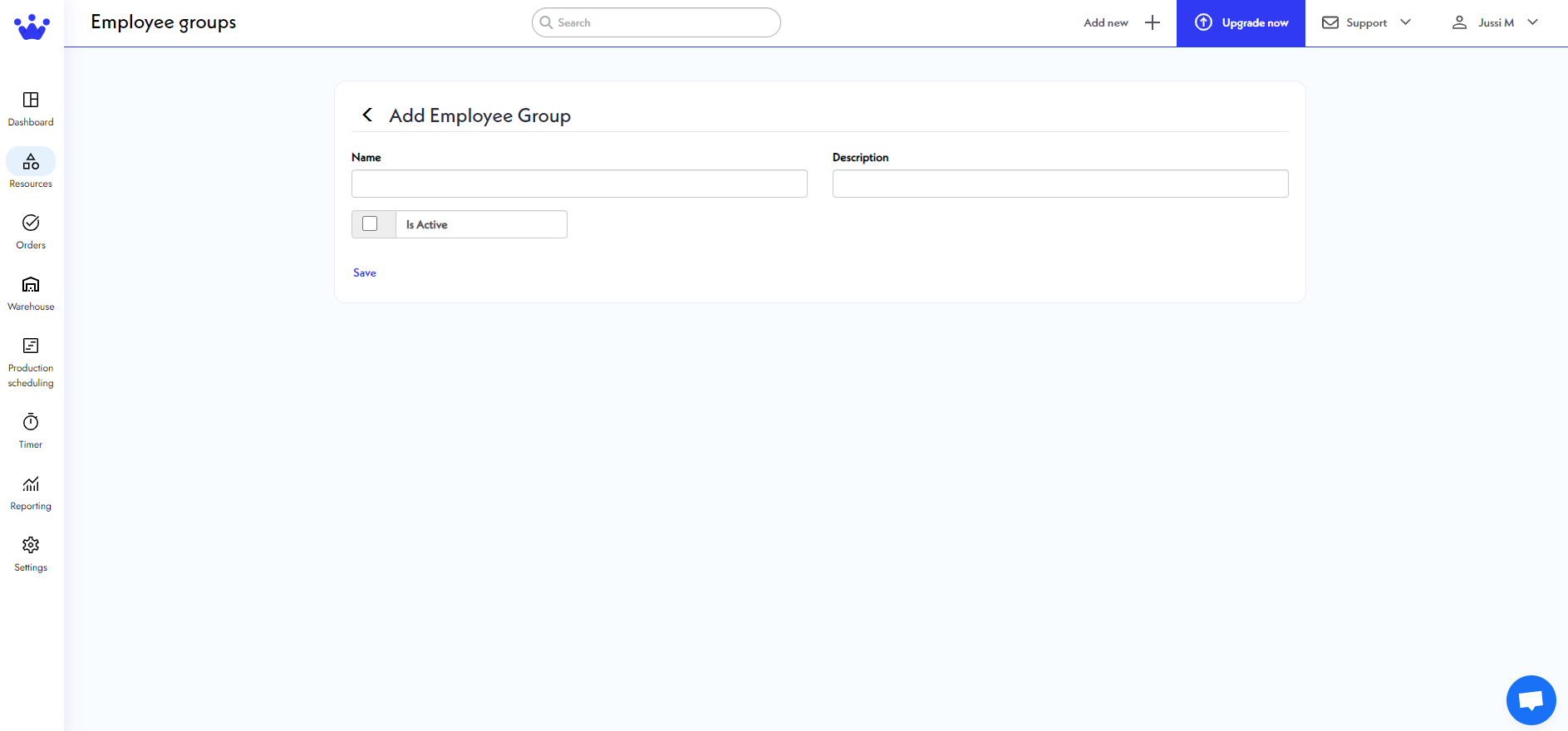
- You will now see a new panel. Add the information requested. Click Save.
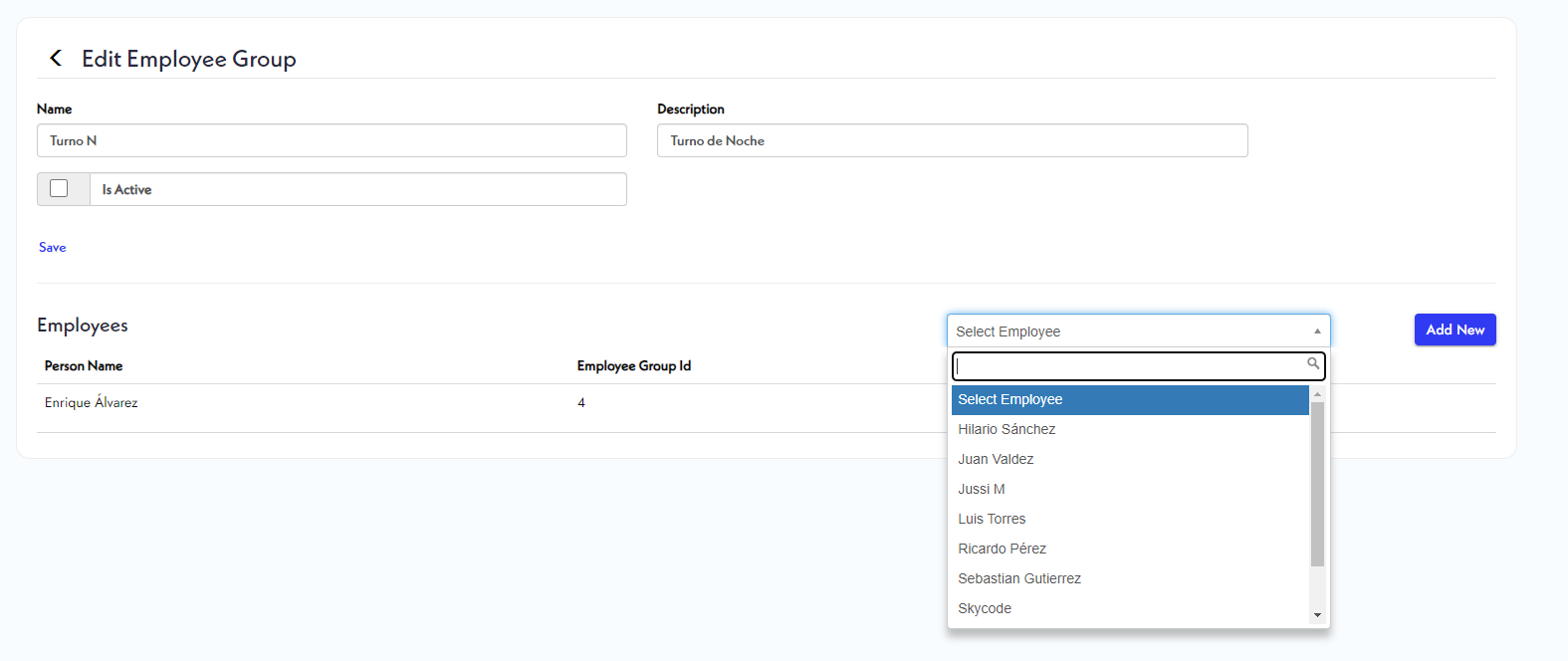
- After saving, you can add employees to this panel. Click Select Employee, search for the employee from your personnel registry you want to add to this group, and then press
.
- When your group is complete, click
on the top and click the back arrow
to go to the previous panel.
- Now you will see your new group.