
How to create a new order
If you want to create a new order:
- Click Orders in the left column and select Orders. Here, you will see all your company's completed, scheduled, and in-process orders and other relevant information.
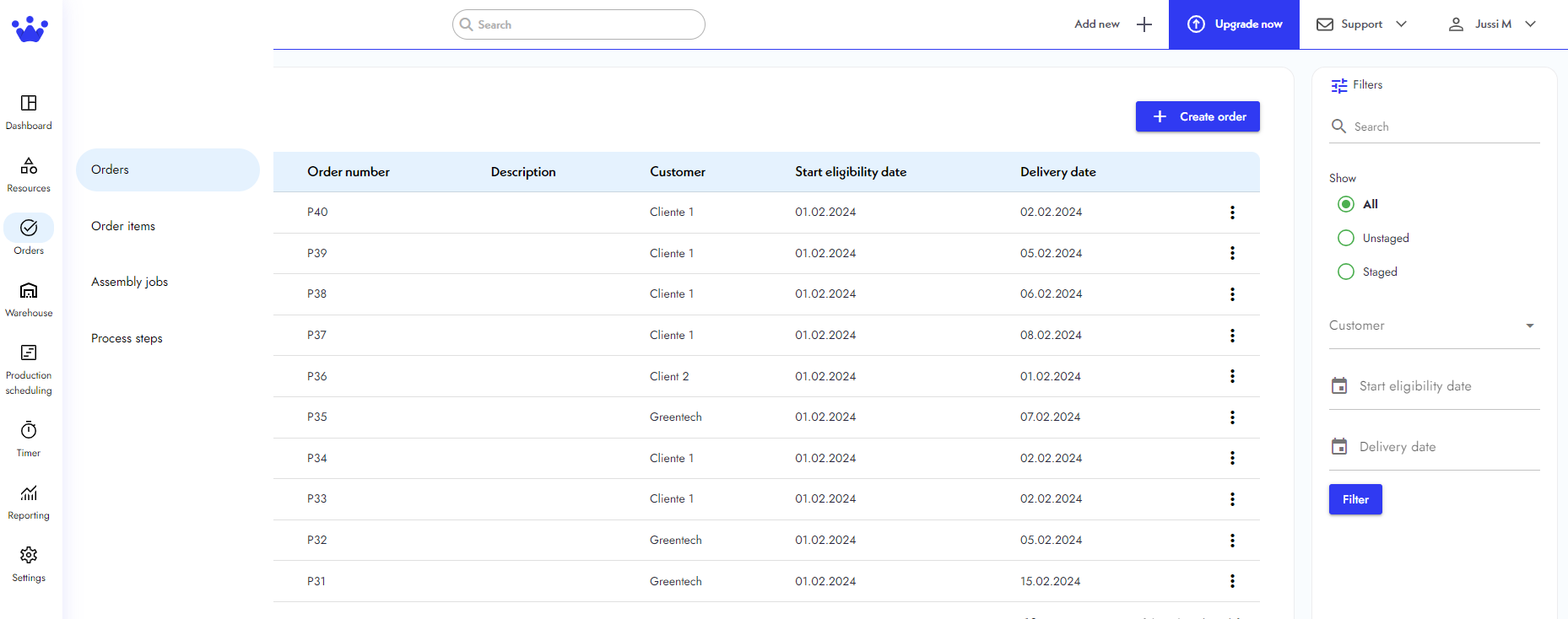
- Next, click the Create order button at the top right. A new window will pop up where you can manage your new order's settings.

- On the order number, SkyPlanner automatically can give you the number of this new order, or you can write it.
- You can select the start day of this new job by clicking the calendar icon or skip this action and allow the AI to choose the best available day.
- On Delivery day, select the date you want this order to be finished and ready to be shipped by clicking on the calendar icon.
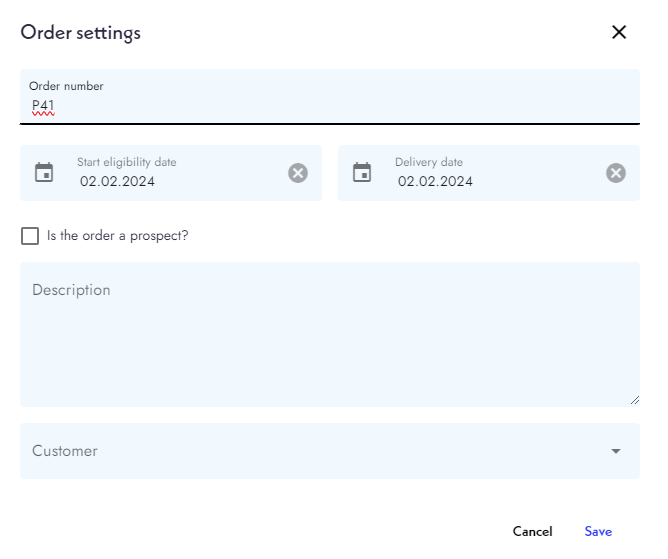
- You also have the option to make this order a prospect. This means you can get the production plan of this order to get a realistic date when your company can complete it without scheduling. This option is generally used to support your company's sales teams.
- Next, you can add a description to this order.
- Finally, select the client who made this order.
- Click Save.
- Your order has been created, and SkyPlanner will ask you to make an Order Item.