
Delete an Employee from a Group
If you want to delete an Employee from a Group:
- Go to Resources and select Employee Groups.
- Next, you will see the Employee Groups panel, where you can visualize all your created groups.
- Now, look for the Employee Group you want to delete an employee from. Click on
the blue pen icon next to it.
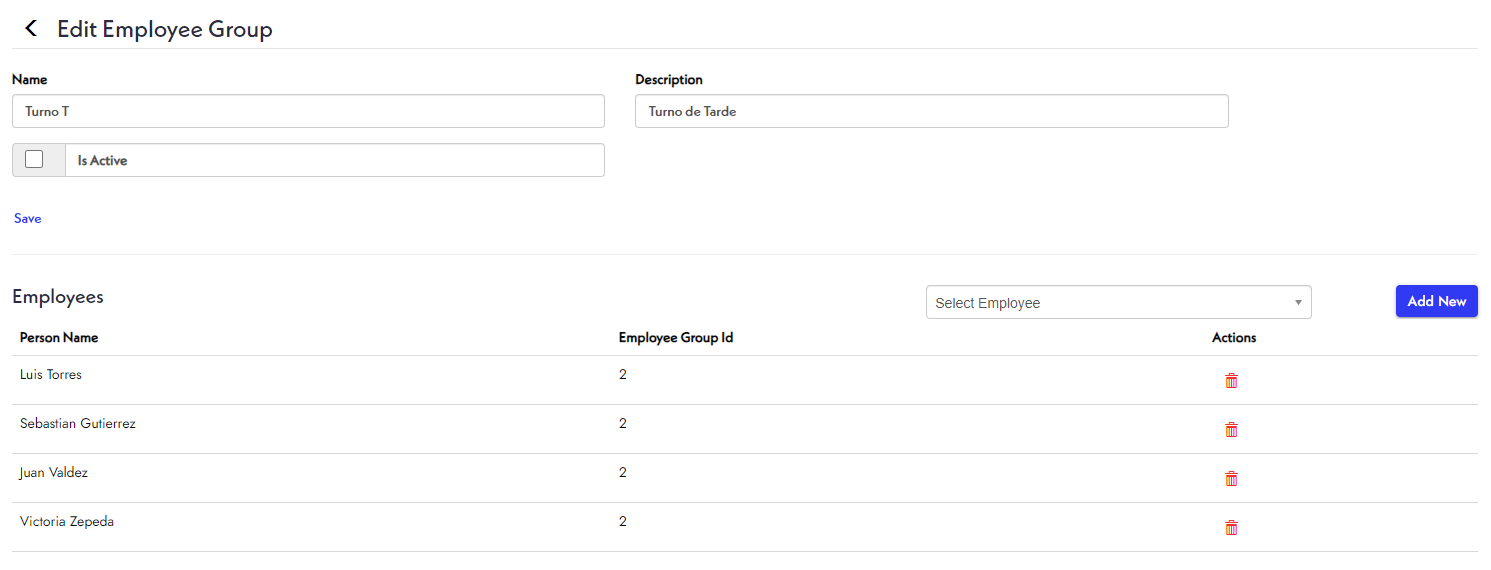
- Now, you will see this group's panel. On the bottom, you can see the personnel who are members of this group. Search for the person you want to delete from this list. Click on
the red trash icon.
- SkyPlanner will ask you to confirm this action. Click Ok.
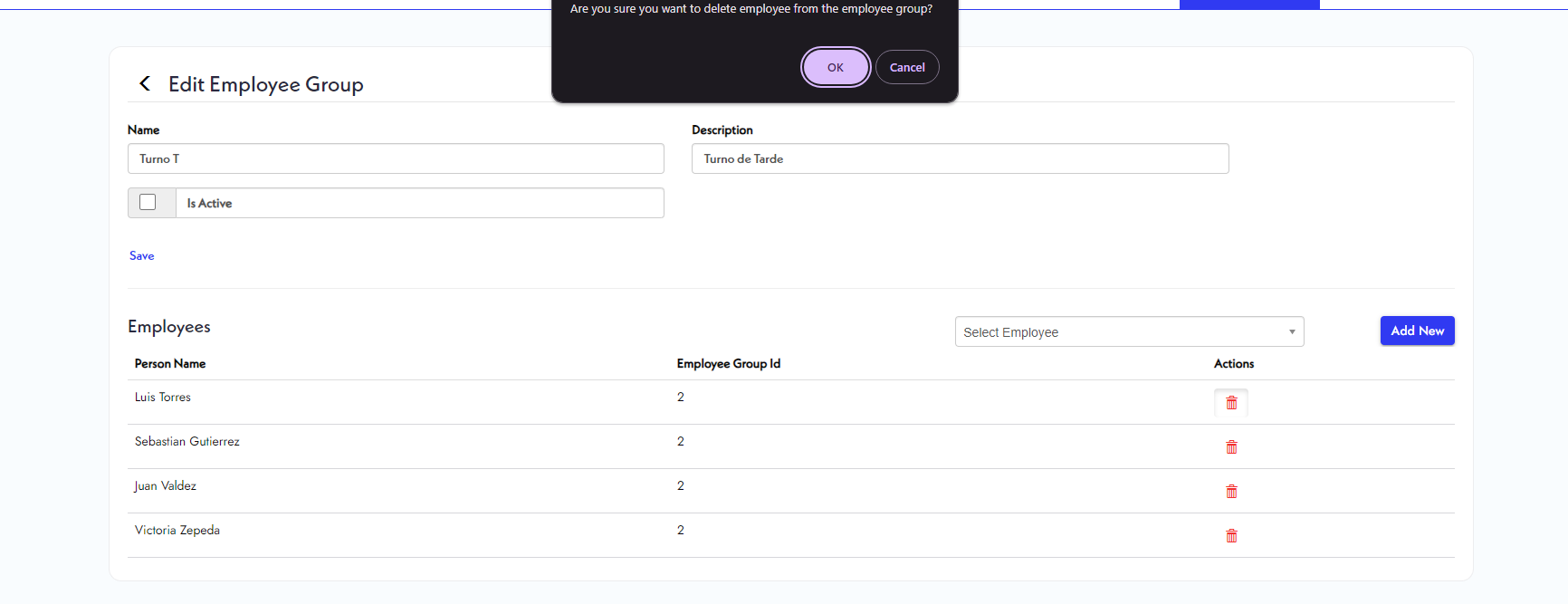
- Now, your employee won't appear on the list. Click
.
- Finally, click the
back arrow to see the updated Employee Groups panel.